All Courses
Course Descriptions
Sessions College offers an exciting range of online design courses. Ask an Admissions Advisor about tuition and start dates--and taking a course as part of a degree or certificate program.
 4242: Color Correction
Correct and enhance image color using Photoshop
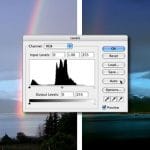
Do you know how to get the best out of your digital images? As every art director knows, even the best photographs (on the best of days) can be plagued by problems such as color casts, unnatural tones, dull highlights, murky shadows, or low contrast. In this online color correction course, you'll learn systematic techniques for every aspect of Photoshop color management using Photoshop. Working with a Photoshop guru, you'll learn how to identify classic color scenarios and use both comprehensive and quick-and-dirty methods for correcting them.
 4302: Typography II
Explore and express your typography in portfolio projects
Typography, technology, and culture are intertwined. Type has the power to communicate meaning and mood through its quirks and beauty, its history and diversity. In this advanced online typography course, you'll learn advanced concepts in typography, building your portfolio through hands-on projects. You'll experiment with type fusion, learn the details of text layout and information hierarchy, create a visual identity for product package and a civic authority, and even design your own currency.
 ADV 201: Advertising Design I
Reach your target audience by design
Ready to put on your Madison Advenue shoes? In this online advertising course, you'll learn the principles of the advertising design from both a creative and a business perspective. Case studies from print, Web, and TV showcase advertising concepts at work: persuasion, color psychology and composition, copywriting and typography, and brand communication. Class projects include ads for newspapers, magazines, subways, and transit/outdoor applications, and a final project in which you create an entire ad campaign.
 ADV 205: Marketing Design
Visual communication in marketing
Marketing designers have a daunting task: communicate with visuals and text in a way that entices consumers. Large corporations, small businesses, and non-profits alike require effective marketing design to promote their products and services. In this online marketing course, you'll make design decisions through research, writing, and planning techniques that set marketing designers (and their clients) apart from the competition. Each course lecture features real-life case studies as well as industry best practices for concept development, branding extensions, image-building, presentation, and even non-traditional marketing.
 After Effects I
Master the art of motion graphics with After Effects
Adobe After Effects is a powerful application for motion graphics and visual effects for film and video. After Effects is used for broadcast graphics, music videos, feature films, video rotoscoping, corporate presentations, and conferences. In this online After Effects course, you can study with a leading animator and learn how to use After Effects to create sophisticated motion graphics—using text and object animations, compositing videos and images, and adding audio and effects. You'll learn how to set keyframes on a timeline and work with transform properties, motion paths, masks, effects, and more.

Advanced Animation and Motion Graphics
It’s time to level up your After Effects skills. In this course, you’ll build on your basic knowledge of AE and explore how to employ more advanced animation techniques and visual effects. Guided by an industry pro, you'll learn how to use motion paths and value and speed graphs to make objects move in believable ways. You will discover how to apply classic animation principles to mirror real-world physics and how to use rigging to set up 2D characters for animation. You will learn about ways to refine your animations and make them interactive. Finally, you'll explore best practice strategies for using Motion Graphics Templates (MOGRTS) and coding to optimize your workflow.
 Animate I
Learn the basics of 2D animation with Adobe Animate
In this course you'll get a thorough, hands-on introduction to Animate, learning how to draw and import artwork, organize it using symbols and layers, and animate it using a range of techniques from basic tweening to frame-by-frame animation. Animation techniques you'll cover will include motion tweening, scaling and rotating objects, nested animations, animating objects on a path, masks, and lip syncing. You'll also master new techniques to make your animations more fluid and realistic. By the end of the course you will have created your own animated instructional or educational video.
 Bootstrap Using Dreamweaver I
Tap the power of Bootstrap using the Adobe HTML editor
Bootstrap provides a framework of HTML, CSS, and JavaScript to speed up your site development. Designing with Bootstrap puts a wealth of useful code at your fingertips. In this course, you'll learn how to build responsive, mobile-first web sites using Bootstrap 5 and Dreamweaver, Adobe's HTML editor. Working with an expert instructor, you'll learn how to design web sites from using HTML and CSS to structure and design page layouts, and ensuring that your designs work on a range of platforms and devices. Each project includes accessibility testing as an integral part of the workflow.
 Bootstrap Using Dreamweaver II
Build advanced, interactive site features with Bootstrap
The powerful assets of Bootstrap are made easier to access using Adobe Dreamweaver. In this advanced course, you'll learn how to build responsive layouts using Bootstrap, add advanced CSS styles and transitions, add JavaScript and jQuery features, all without reams of code. Working with a pro Web designer, you'll learn how to apply these techniques to practical design project scenarios.
 Cartooning and Sequential Art
Develop your storytelling skills in cartoon art
The great cartoon artists know how to tell a story with one image. In this online cartooning course, you'll explore concepts for visual storytelling. Working with a veteran cartoonist, you'll discover how master cartoonists tell stories simply and effectively and apply what you learn in practical projects that help you grow your sequential art portfolio. Course topics include panel transitions, time and motion effects, character studies, speed drawing, and polishing and presenting your work to publishers.
 Color Theory
Learn how to design with color
Color is an essential tool for any designer. Though each color has its own specific hue and value, the expression and perception of color changes in different contexts. In this online color theory course, you'll learn how to work with color, discovering how to develop color schemes for your design projects. The course will range from fundamental color concepts and terminology to the practical application of color in typography and using color effectively on-screen.
 Commercial Photography I
Master the art of event photography
Event photography is the primary source of business for most professional photographers. Capturing the important moments in a concert, wedding, or sporting event requires planning and a mastery of equipment, lighting, and location. In this course, you'll learn practical skills for managing paid event photography shoots. Working with a professional photographer, you'll learn how to approach projects professionally and deliver the client a high quality product.
 Commercial Photography II
Professional techniques for products, portraits, lifestyle, and more
Are you looking to branch out and make a career as a commercial photographer? This advanced commercial photography course teaches you how to market yourself and gain new clients, shooting commercial subjects like buildings, products and food for e-commerce, advertising, and lifestyle industries. Other exciting areas of focus include portraiture photography and photojournalism.
 Computer Technology
Gain a firm foundation in computer technology
To succeed in today's digital workplace, it's imperative to understand how computers work. In this online computer technology course, you'll gain a foundation in modern computer systems. The course provides a foundation in the computer concepts that every working professional should know. Lectures explore the history and technical evolution of computing, with a focus on the development of hardware, software, and the Internet have developed. Course assignments challenge students to master concepts and relate their studies to relevant professional scenarios, including data representation, programming, and social issues in computing.
 Copywriting
Master the nuances of ad copywriting
Every ad designer must grasp the basics of persuasive copywriting. In this online copywriting course, students will study how text and images interact in effective ad campaigns, learning how to write and edit ad copy for print and digital advertising media and turn written ideas into visual expression. Working with a professional writer and editor, you'll hone your copywriting skills on realistic projects.
Copywriting
Master the craft of copywriting
Every digital content creator must grasp the basics of persuasive copywriting. In this online copywriting course, students will study how text and images interact in effective ad campaigns, learning how to write and edit ad copy for print and digital advertising media and turn written ideas into visual expression. Working with a professional writer and editor, you'll hone your copywriting skills on realistic projects.
 Creative Concept Development
Creative tools for an artist or designer
Where do creative concepts come from? In advertising, illustration, and design, you need to be able generate many ideas for your clients and projects. You can have all the skills in the world, but unless you can develop creative concepts, your products and content will get lost in the sea of what's out there. This online creativity course provides you a training in identifying the needs of each project, brainstorming solutions, challenging your assumptions, and testing/evaluating your ideas until you have a winner.
Creative Concept Development
Creative tools for an artist or designer
Where do creative concepts come from? In advertising, illustration, and design, you need to be able generate many ideas for your clients and projects. You can have all the skills in the world, but unless you can develop creative concepts, your products and content will get lost in the sea of what's out there. This online creative concept development course provides you a training in identifying the needs of each project, brainstorming solutions, challenging your assumptions, and testing/evaluating your ideas until you have a winner.

Develop a multi-faceted project in support of your creative goals.
Professional designers apply design and communication principles, meet milestones, collaborate with clients, analyze, evaluate, and synthesize creative concepts, adhere to deadlines, and strive to exceed expectations. In this class, you will continue to advance the design strategy plan you developed in the DES 360 Design Systems and Planning course. In collaboration with your instructor, you will select or “spec out” and complete a multi-faceted project and/or set of projects that support your portfolio goals. In this course, your instructor will serve as your client, and your class grade will be based not only on the quality of your work but also on your ability to meet deadlines, synthesize design principles, and effectively present your work.

Strategies for success in advancing your creative business
During this class you will develop and/or enhance your business forms and collateral materials for your photography, illustration, and design business based upon industry standards and best practices. In preparation for running your own creative services business, you will also create a business plan and marketing plan as you explore an ethical and scalable business philosophy. You will focus on networking with fellow creatives through local industry organizations and/or respected creative work sharing sites and implement your internship outreach plan in preparation for the DEG 410 Internship and Entrepreneurship.